Workspaces
Workspaces let teams share notes, members, and settings in a single place.
A workspace is a shared environment for your team. Members can collaborate on notes, tasks, and shared memories together.
Creating a workspace
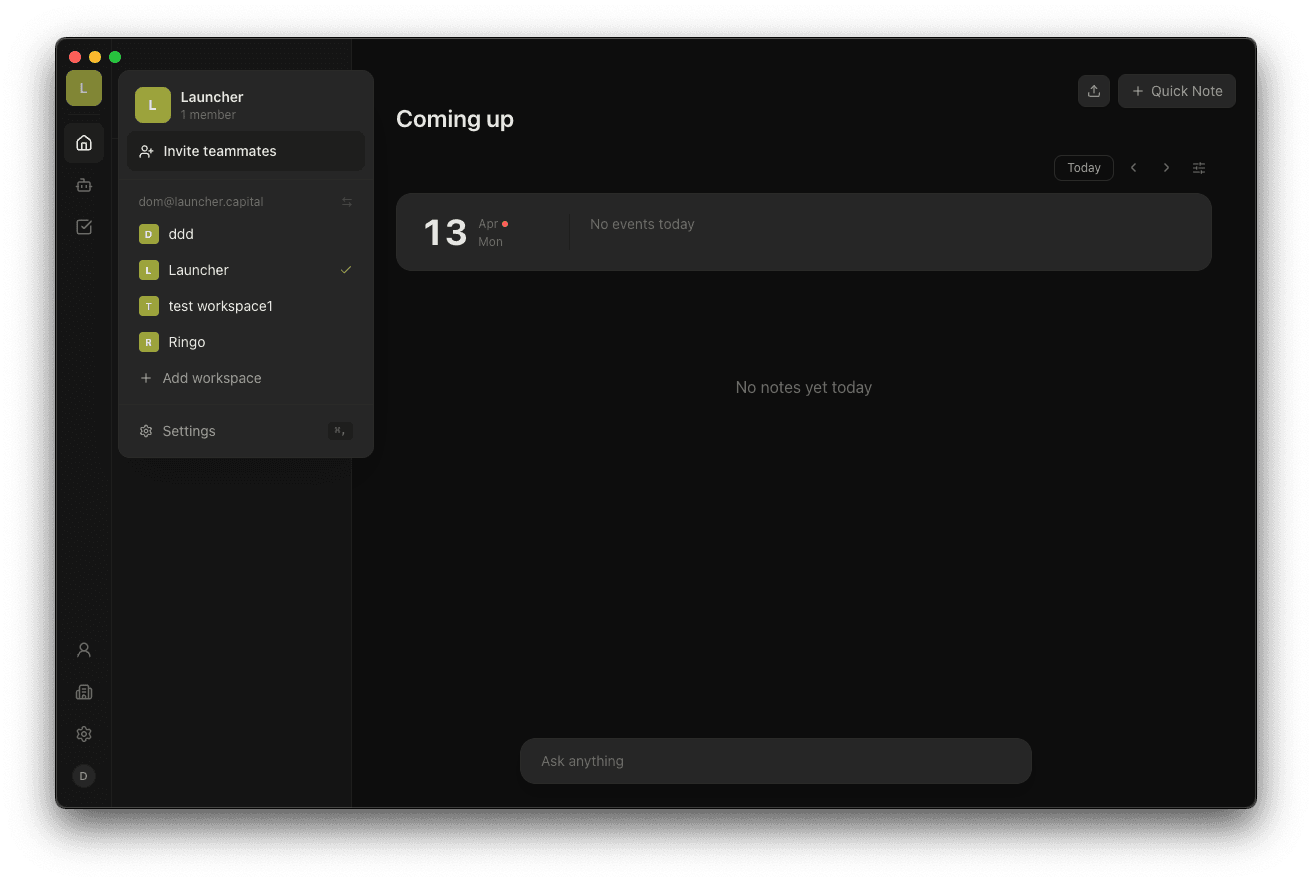
When you sign up, Ringo creates a personal workspace for you automatically. To add another workspace, click your workspace name in the top-left corner and select + Add workspace.
Inviting team members
Click your workspace name in the top-left corner to open the workspace menu, then click Invite teammates.
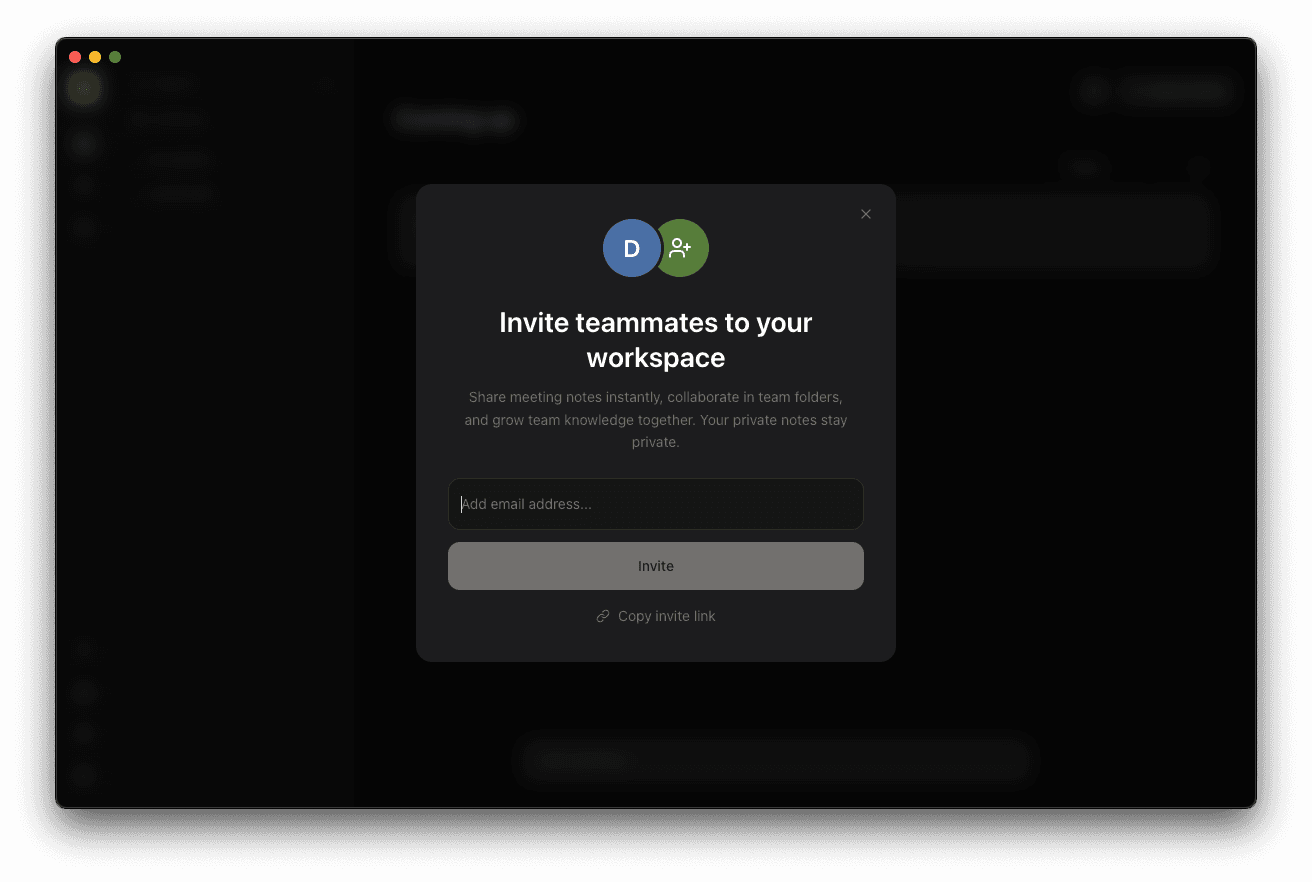
You can invite members in two ways:
- Email invite — enter an email address and click Invite. The recipient gets a personal invite link sent directly to their inbox.
- Copy invite link — click Copy invite link to share a link manually (e.g. via Slack or chat).
Roles
| Role | Permissions |
|---|---|
| Owner | Full control, delete workspace |
| Admin | Manage members, configure SSO, change settings |
| Member | Record meetings, create and view notes |
Switching workspaces
Click your workspace name in the top-left corner. Your workspaces are listed — click any to switch. A checkmark shows your current workspace.
Workspace settings
Workspace-level settings — including general info, member management, and SSO — are found in Settings under the Workspace section.