Getting Started
Ringo 101
Your first meeting with Ringo — from recording to notes in five minutes.
This guide walks you through your first full Ringo experience.
Before your meeting
- Sign in with your Google account (see Signing In).
- Connect your calendar so Ringo can show upcoming meetings (see Calendar Setup).
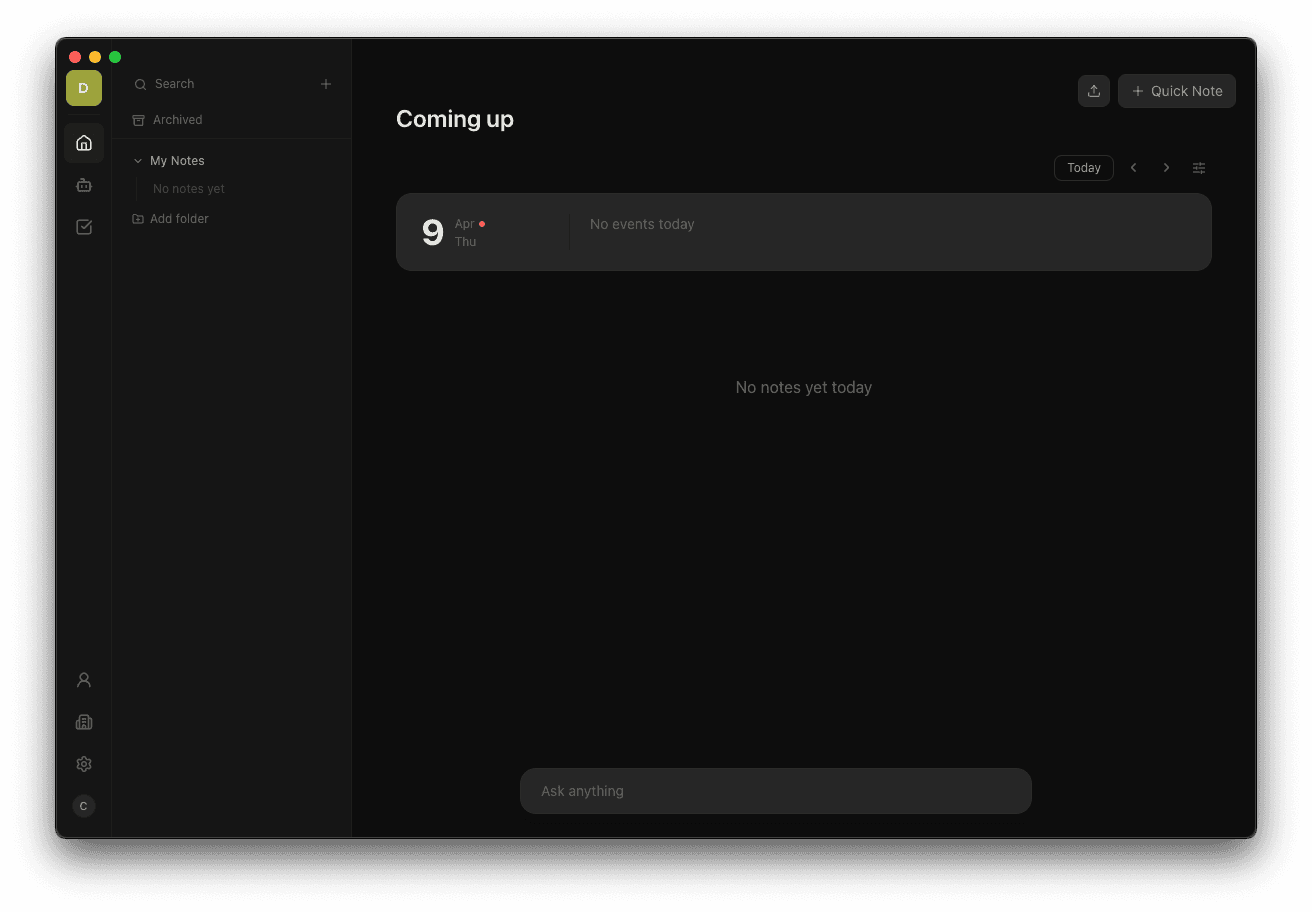
- Open Ringo — your upcoming meetings will appear on the Home screen.
- Go to Settings → Language and select your preferred language for the app and transcription.
During the meeting
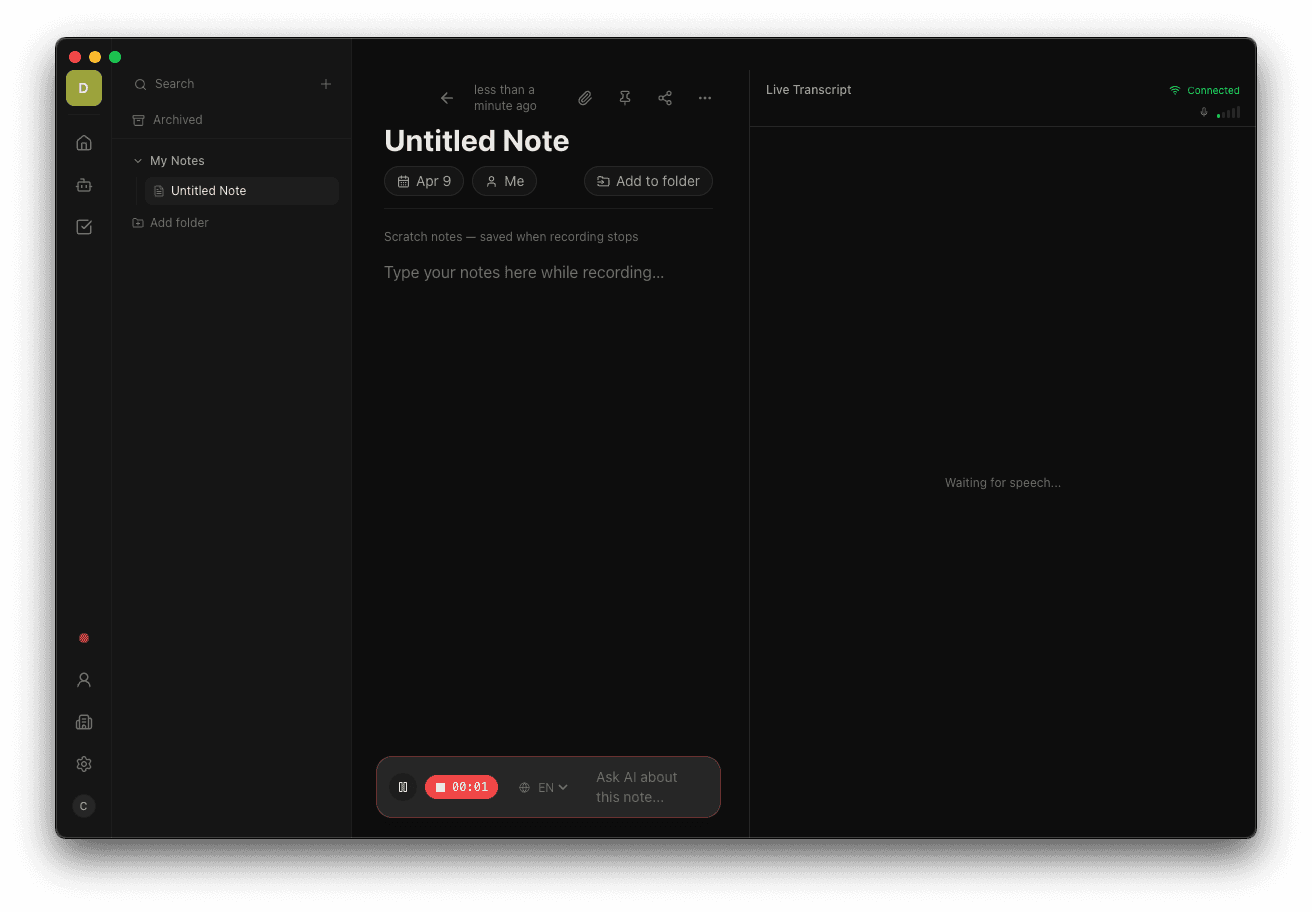
- Click Start Recording on the meeting card, or use the menu bar icon.
- Ringo begins capturing audio in the background. A small indicator shows recording is active.
- You'll see a live transcript appearing in real time.
- You can take your own notes alongside the transcript — they'll be included in the final summary.
After the meeting
- Click Stop Recording.
- Ringo processes the transcript and generates:
- A structured meeting summary
- Tasks for meeting participants
- Key decisions and discussion points
- Your note appears in the Notes list, ready to review, edit and share.
 4. Allocate tasks to relevant members, who will then be able to view them.
What's next?
- Share a note with a teammate.
- Ask questions about the meeting using AI Chat.