Getting Started
Connecting Your Calendar
Sync Google Calendar with Ringo to see upcoming meetings and start recording with one click.
Ringo integrates with Google Calendar to show your upcoming meetings and let you start recording directly from a meeting card.
Connect Google Calendar
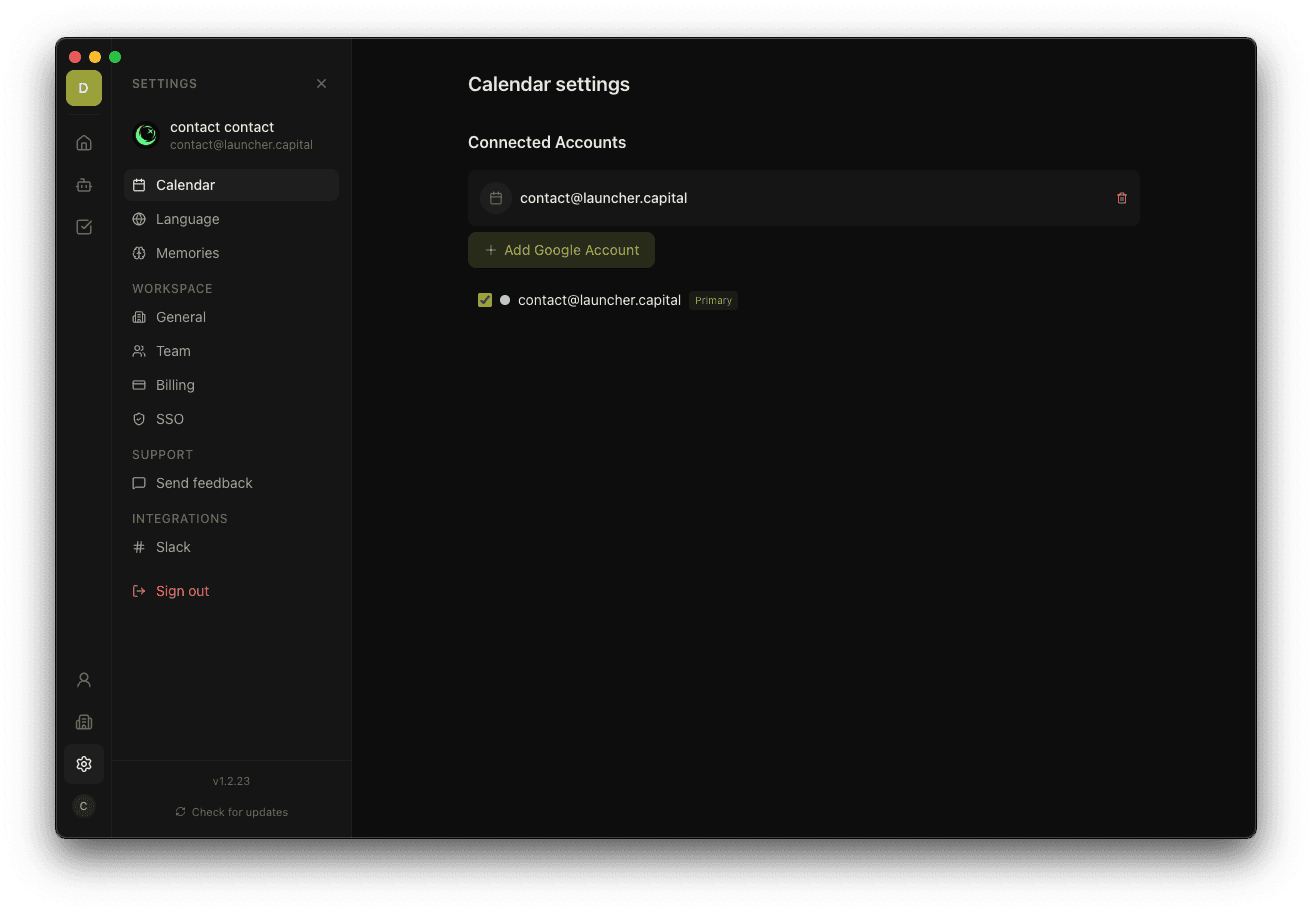
- Open Ringo and go to Settings → Calendar.
- Click Connect Google Calendar.
- Your browser will open to Google's OAuth consent screen.
- Approve calendar read access.
- Your meetings will appear on the Ringo Home screen within a few seconds.
Multiple calendars
Ringo syncs all calendars in your Google account by default — including shared and subscribed calendars. You can choose which calendars to include in Settings → Calendar.
Multiple Google accounts
You can connect more than one Google account to Ringo. In Settings → Calendar, click Add another account to add a second account.
Auto record meetings
To have Ringo automatically start recording when a calendar meeting begins, go to Settings → Preferences and enable Auto Record Meetings.
Disconnecting
Go to Settings → Calendar and click Disconnect next to the account you want to remove.